

GPT Image 2.5 is useful for turning an ad idea into something you can judge: a product on a wet stone plinth, a fashion campaign with a clear color direction, or a new background around an approved photograph. Both Flare and Sunburst are available in Morphed's AI ad generator.
Start with a clear product reference and one visual idea. Generate a few distinct concepts, choose the composition, and make targeted edits. Keep final copy and layout editable when the campaign needs precise typography.
The images below are original generations from our launch testing. The perfume bottle and fashion subjects are fictional. They show creative possibilities, rather than product-reference accuracy or measured advertising performance. The reusable briefs later in this guide are starting points for your own campaign.
Choose Flare or Sunburst for the job
OpenAI's image prompting guide positions Flare for speed and Sunburst for demanding quality requirements. It describes Flare's overall image quality as comparable to GPT Image 2, and Sunburst's as higher. Both add improvements to precise editing and subject preservation.
For an ad workflow, try Flare while exploring different compositions. Compare Sunburst when the material, face, or fine detail is central to the image. Use the same brief and references so you can see what the model changes.
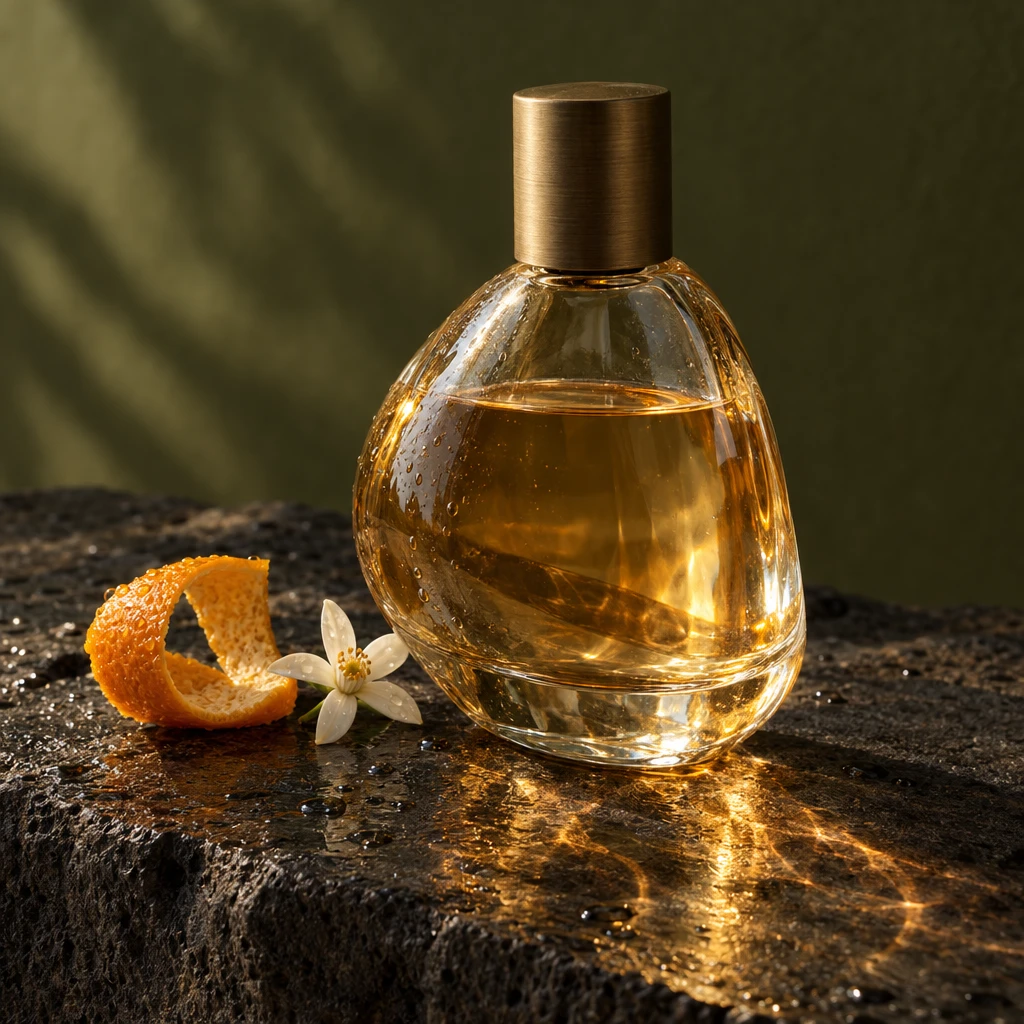
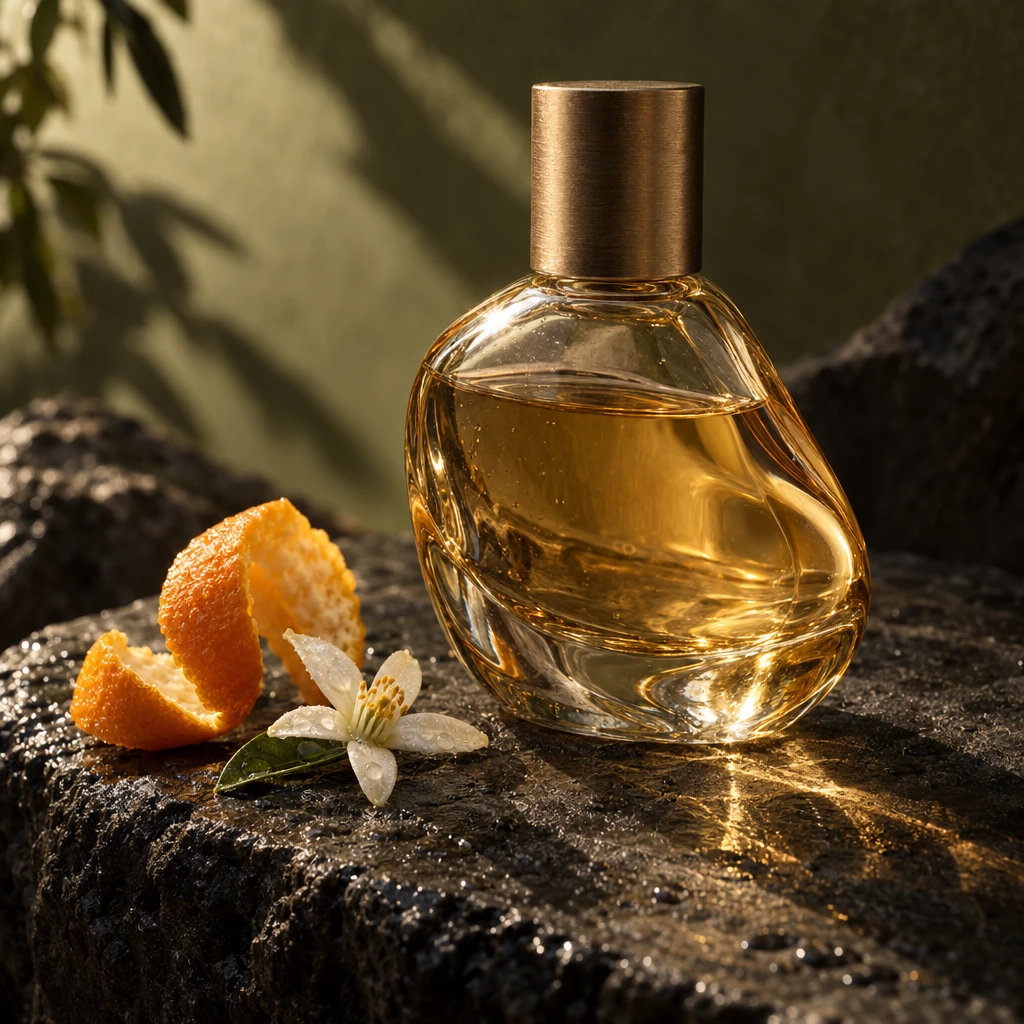
These two images used the same prompt, square dimensions, and High quality. The bottle was described in text, so its shape can differ between outputs. To advertise an actual bottle, start from its photograph.
For more examples, see our 48-image comparison of GPT Image 2.5 and other models.
Build the brief before the image
A useful ad brief answers five questions:
- What is the product, and which details identify it?
- What should the viewer notice first?
- Where will the image appear?
- What light, materials, and colors belong in the scene?
- What must stay unchanged?
For example, a skincare ad might need a readable label, a calm bathroom setting, and open space for a headline. A sneaker launch might need the exact outsole shape, a low camera angle, and a stronger sense of movement. “Make it premium” does not tell the model any of that.
Set the output ratio in the image controls. On Morphed, GPT Image 2.5 offers square, portrait, and landscape choices, including 1:1, 3:4, 9:16, 4:3, 16:9, 3:2, and 2:3. Check the destination's current placement requirements before exporting. A square preview alone will not tell you whether a vertical crop works.
Make a product ad in Morphed
- Open Images and choose GPT Image 2.5 Flare or Sunburst.
- Add a clear product photograph if the real item's appearance matters. Make the label, edges, and proportions visible.
- Select the aspect ratio and quality in the controls, then write the brief.
- Generate a concept and inspect the entire image, including small text and reflections.
- Use the selected result as an input for the next edit. Change one thing and restate the details to preserve.
- Download the approved image and finish the headline, offer, and call to action in your layout tool when exact placement matters.
For multiple references, explain their roles: the first image is the product, the second sets the lighting, and the third supplies a background direction. Otherwise the model has to guess which elements belong together.
Brief 1: a product hero with room for copy
Use this with your own product photograph:
Create a product advertising photograph using the bottle in reference image 1.
Preserve the bottle silhouette, cap, label wording, label placement, and proportions.
Place it upright on a warm limestone plinth with a soft shadow falling to the right.
Use pale morning light from the left and a muted sage background.
The product should sit in the lower-right part of the composition.
Leave the upper-left area quiet and uncluttered for a headline that will be added later.
Keep the entire bottle visible. No extra products, invented badges, or additional text.
The empty space is part of the composition. If every corner contains a leaf, splash, or decorative object, the headline has nowhere to go.
Brief 2: a fashion campaign with one strong idea
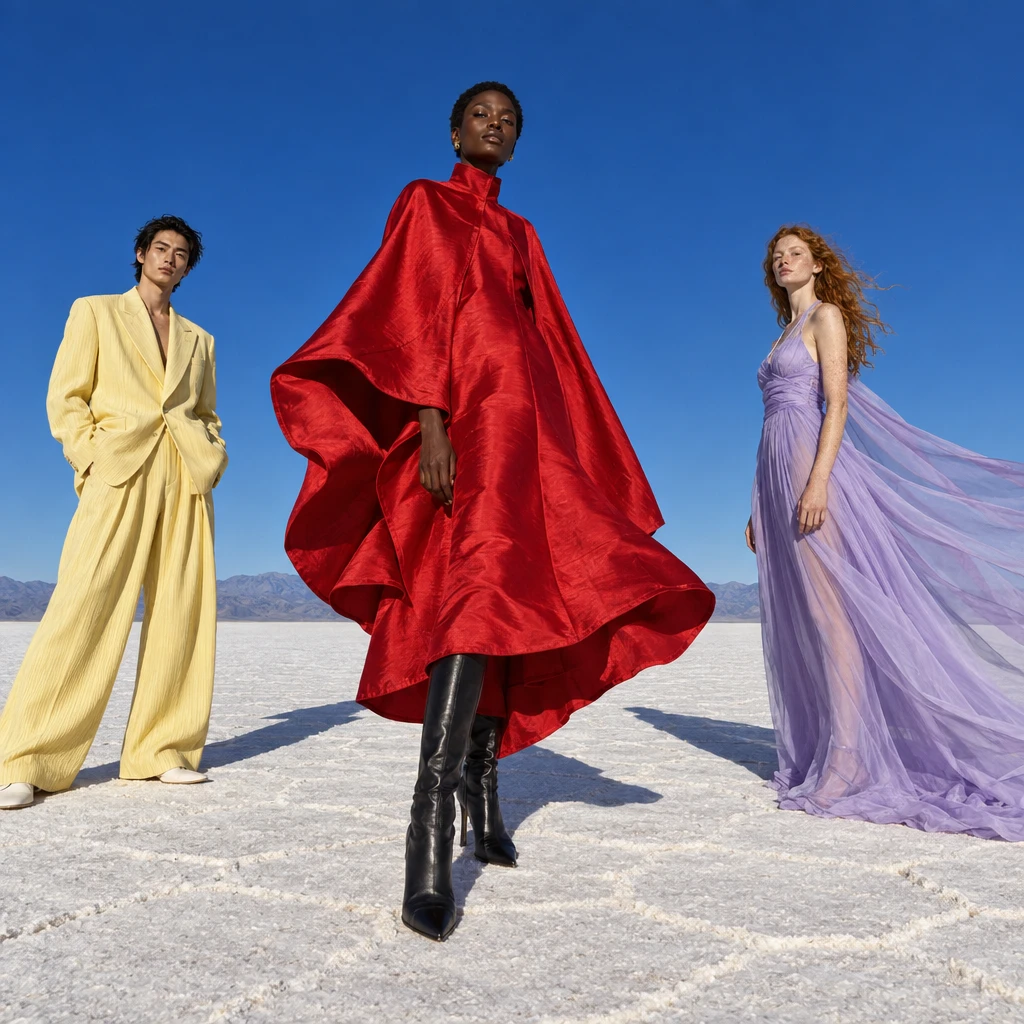
Our launch example used a cobalt sky, salt flat, and sculptural clothing. The wide spacing between the figures gives each silhouette room to read.
For your own campaign, replace the subject with an approved garment reference:
Create a fashion campaign photograph around the jacket in reference image 1.
Preserve its cut, pockets, seams, closure, and color.
A fictional adult model stands against a pale concrete wall in hard afternoon light.
Use a full-body composition with the jacket clearly visible and a natural standing pose.
One long shadow crosses the ground. Restrained colors, visible fabric texture.
Leave space above the model for a short headline. No added logos or lettering.
Inspect the garment rather than judging only the face or atmosphere. An attractive campaign image is unusable if the model invents a pocket or changes the product's construction.
Brief 3: a food image that still looks edible
Create an editorial advertisement for a small bakery's lemon tart.
Use reference image 1 for the tart's actual size, crust, filling, and garnish.
Place one slice beside the whole tart on an off-white ceramic plate.
Soft window light, a pale blue tablecloth, and a few natural crumbs.
Show believable pastry texture and a moist cut surface.
Keep the composition simple and leave clear space on the right for copy.
No extra fruit, invented packaging, lettering, or plastic-looking food.
Food prompts benefit from concrete material descriptions. Tell the model what should look crisp, soft, translucent, or glazed, then check whether those materials remain believable.
Use quality settings deliberately
Morphed exposes Low, Medium, High, Extra high, Maximum, and Auto for GPT Image 2.5. Start with Medium for a composition check. Compare High when the image will be inspected closely. Test Extra high or Maximum for a specific unresolved detail rather than selecting them for every draft.
Quality and image dimensions are separate controls. A larger file does not prove better instruction following, and two models using the label “High” do not necessarily spend the same effort. Our comparison images used High for all three OpenAI models; they are not an equal-cost benchmark.
Edit the background without rewriting the whole brief
Once you approve a product, use a focused instruction:
Change only the background to a softly lit terracotta wall.
Preserve the product's silhouette, scale, position, label text, cap, and reflections.
Keep the camera angle and the shadow direction unchanged.
Do not add objects or rewrite any lettering.
An instruction to preserve something is a request, not a pixel lock. Compare the edited product with the approved version. If a label or shape must remain exact, retain the original product pixels in a compositing tool.
For a wider placement, ask the model to extend the surroundings and keep the subject's scale and position consistent. Check the newly generated edges and the original subject. See OpenAI's image generation documentation for generation and editing capabilities.
Keep ad copy short and check it separately
If the image itself needs lettering, quote the exact words and describe where they belong. Start with one headline, then inspect every character at the size people will actually see it.
For campaigns with multiple offers, languages, or placements, keeping text in your design tool makes revisions easier. You can reuse the image without asking the model to regenerate the product every time a price or headline changes.
Compare concepts before making dozens of variants
Create a small set with different visual ideas: a clean studio shot, a scene showing the product in use, and a more unusual campaign concept. Choose the idea before producing every crop.
When the ad goes live, measure its actual performance. Image quality, click-through rate, and sales are different outcomes. The examples in this guide have not been tested in a paid campaign.
Try the workflow with Flare or Sunburst. For more product-specific ideas, continue with our AI product photography guide.