

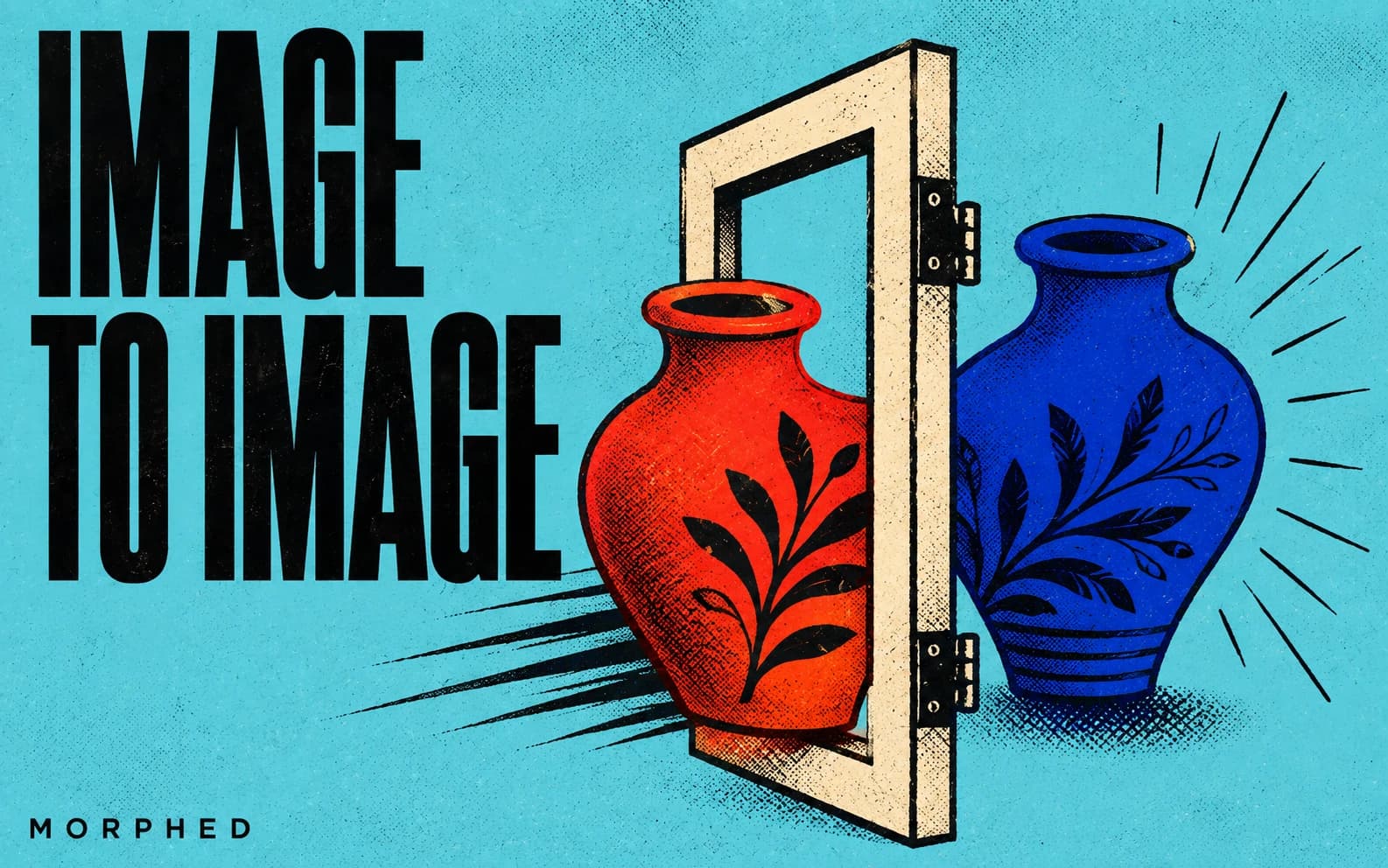
Image-to-image (img2img) AI takes an existing image as input and transforms it — restyle, edit elements, transfer composition, or combine references — versus text-to-image which starts from words. Best models 2026: Nano Banana (identity-preserving edits), Seedream 4.5 (hi-res, product), FLUX Kontext (local context edits), Qwen Image Edit (low-cost). "Strength" controls how much changes. Costs on Morphed: 1.5-5 credits/image, a guided free start, no card needed. Last verified June 2026.
Most people meet AI image generation through text-to-image — type a prompt, get a picture. But the workflow professionals actually live in is image-to-image: feed the model a photo you already have and transform it. Restyle it, edit one element, transfer its composition to a new subject, or merge two references into one.
Image-to-image is where control lives. Here's how it works, the models that do it best in 2026, and the exact settings that decide your results.
Text-to-image vs. image-to-image
| Text-to-image | Image-to-image | |
|---|---|---|
| Input | A text prompt only | A source image (+ optional prompt) |
| Control over composition | Low — the model invents it | High — inherited from the source |
| Best for | New concepts from nothing | Edits, restyles, consistency, references |
| Typical use | "A castle on a hill at dusk" | "Make this castle photo look like a watercolor" |
If you know roughly what you want to see, text-to-image is fine. If you have something specific you want to change or build on, image-to-image wins every time — it's the difference between rolling dice and steering.
The four things image-to-image is for
1. Restyle (style transfer). Keep the subject and composition, change the medium or aesthetic — photo to oil painting, day to night, modern to vintage. Covered in depth in our turn a photo into a drawing guide.
2. Edit specific elements. Change one thing and leave the rest pixel-stable — recolor an outfit, remove an object, swap a background. This is prompt-based editing; the full toolkit is on our AI image editor page.
3. Transfer composition or pose. Use the source as a structural template and generate a new image that follows its layout, pose, or framing.
4. Combine references. Multi-image input — put the product from photo A into the scene from photo B, or apply photo A's lighting style to photo B's subject.
Best image-to-image models, 2026
| Model | Credits/image | Best at |
|---|---|---|
| Flux 2 Flash Edit | 1.5 | Cheap, fast iteration |
| Qwen Image Edit | 3 | Reliable instruction-following, low cost |
| Seedream 4.5 Edit | 4 | High-res transforms, product, text |
| Nano Banana Edit | 4 | Identity preservation, natural edits |
| Flux Kontext Pro Edit | 4 | Context-aware local edits |
| Grok Imagine Edit | 5 | Bold creative restyles |
| Nano Banana Pro Edit | 15 | Hardest multi-subject / layout edits |
The right pick depends on the transformation: subtle, identity-critical edits → Nano Banana; dramatic restyles → Grok Imagine; anything with text in it → Seedream 4.5. The full model breakdown is in our AI image generation models guide.
The one setting that matters: strength
Classic image-to-image exposes a strength (or denoising) value:
- Low strength (0.2–0.4): the output stays very close to the source — good for subtle cleanups and color shifts.
- Medium (0.5–0.7): balanced — recognizable source, meaningful changes. The default for most restyles.
- High (0.8–1.0): the source becomes a loose suggestion; composition survives but details are reinvented.
Modern prompt-based editors (Nano Banana, Seedream) infer the right amount of change per instruction, so you steer with words ("subtle", "completely restyle") instead of a slider. Either way, the principle is the same: more change = less of the original survives.
A practical image-to-image workflow
- Start with a clean source. Sharp, well-lit inputs transform better. Small or soft? Upscale first.
- Pick the model for the job (table above).
- Write a precise instruction. Name what to change and what to keep: "turn the background into a snowy forest, keep the person and their pose exactly the same."
- Compare across models for anything important — same input, two or three models, keep the best.
- Finish in the same studio: remove the background, upscale to print, or animate the result.
Image-to-image, image-to-video, and beyond
Image-to-image is one input mode in a connected pipeline. The same source photo can also drive image-to-video (animate a still into a clip), multi-angle generation (new camera angles from one shot), and product scenes. One source, many outputs, one workspace.
Try image-to-image free
Upload any photo in the Morphed studio and transform it across 25+ image-to-image models — a guided free start, no card needed. 1 credit ≈ $0.01.
Related reading:
- AI Image Editor — prompt-based editing toolkit
- Best AI Image Generation Models
- Turn a Photo into a Drawing
- Nano Banana Prompts for Editing Images